
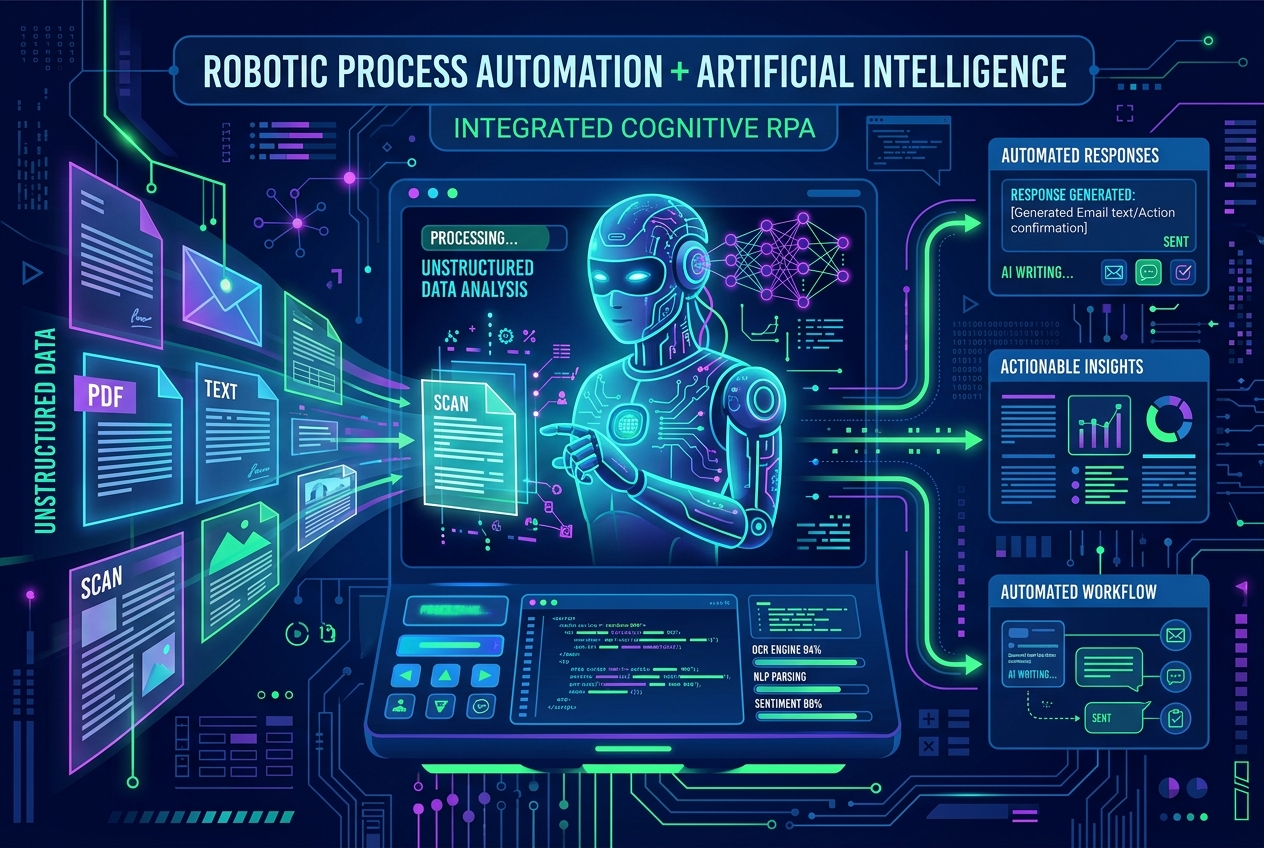
The Era of Cognitive RPA
For a long time, Robotic Process Automation (RPA) was limited to rigid, rule-based tasks. If a customer sent an email asking for a custom invoice adjustment, a traditional desktop bot could not process it because the request was written in unstructured natural language. The bot could only read files, click coordinates, or paste records.
With the rise of Large Language Models (LLMs), RPA developers have a new superpower: Cognitive Automation.
By connecting APIs like OpenAI GPT-4o or Anthropic Claude directly to Power Automate Desktop (PAD), you can build bots that think, read emails, parse PDF layouts, and draft personalized responses before logging into legacy ERP mainframes to execute the transactions.
Let's look at how to set up an LLM integration inside Power Automate Desktop using HTTP Web Service calls.
1. The Integration Flow: Orchestrating RPA & AI
A cognitive RPA flow generally operates like this:
[Input Data] ➔ [Power Automate Desktop] ➔ [Invoke Web Service (LLM API)]
                       ▲                               │
                       └───── [Extract response JSON] ◄┘
                                       │
                        [Process in legacy desktop app]
By querying the LLM via an API call, we can extract structured information from messy inputs, and then feed that structured data straight into standard desktop keystrokes and button clicks.
2. Step 1: Configuring the API Request Headers
To communicate with an LLM provider (e.g., OpenAI), you need an API key.
Inside Power Automate Desktop:
- Create a variable named
%ApiKey%and paste your secret token as its value. - Add the Invoke Web Service action to your workspace.
- Configure the following parameters:
- URL:
https://api.openai.com/v1/chat/completions - Method:
POST - Accept:
application/json - Content-Type:
application/json - Custom Headers:
Authorization: Bearer %ApiKey%
- URL:
3. Step 2: Crafting the JSON Request Body
To ensure the LLM returns data in a clean format that our RPA bot can read without crashing, we should instruct the LLM to output structured JSON.
In the Request Body parameter of the action, paste the following JSON payload:
{
  "model": "gpt-4o-mini",
  "response_format": { "type": "json_object" },
  "messages": [
    {
      "role": "system",
      "content": "You are an assistant that extracts data from customer support emails. Respond ONLY with a JSON object containing keys 'customer_name', 'invoice_number', and 'dispute_reason'."
    },
    {
      "role": "user",
      "content": "Hi, this is David Miller. I noticed invoice INV-9902 has a double billing charge for shipping ($15). Please adjust the balance."
    }
  ]
}
By specifying "type": "json_object" in the request, OpenAI guarantees the response will be a valid, parseable JSON string.
4. Step 3: Parsing the Response in Power Automate
Once the API request returns a response, Power Automate Desktop saves the output in the variable %WebpageResponse%.
To extract the structured variables:
- Drag the Convert JSON to Custom Object action into your workspace.
- Set the input to
%WebpageResponse%. The output is saved in a custom object named%JsonAsCustomObject%. - You can now access the response variables using dot notation:
%JsonAsCustomObject.choices[0].message.content%retrieves the raw string content.
- Convert this inner string into another custom object (e.g.,
%ExtractedData%) to access:%ExtractedData.customer_name%➔"David Miller"%ExtractedData.invoice_number%➔"INV-9902"%ExtractedData.dispute_reason%➔"Double billing charge for shipping ($15)"
Your RPA bot can now copy %ExtractedData.invoice_number% and paste it directly into your company's desktop billing software!
The Value of Agentic RPA Skills
Integrating cognitive intelligence into local desktop flows is one of the most in-demand enterprise skills today. Companies are actively migrating their old, fragile scripts into intelligent, LLM-enabled workflows that require fewer maintenance updates and can handle complex business scenarios.
At RPAVault, we prepare automation engineers for this transition. Check out our flagship RPA Agentic Cohort (UiPath + Power Automate) to learn how to orchestrate advanced cognitive workflows and design AI-agent structures.