
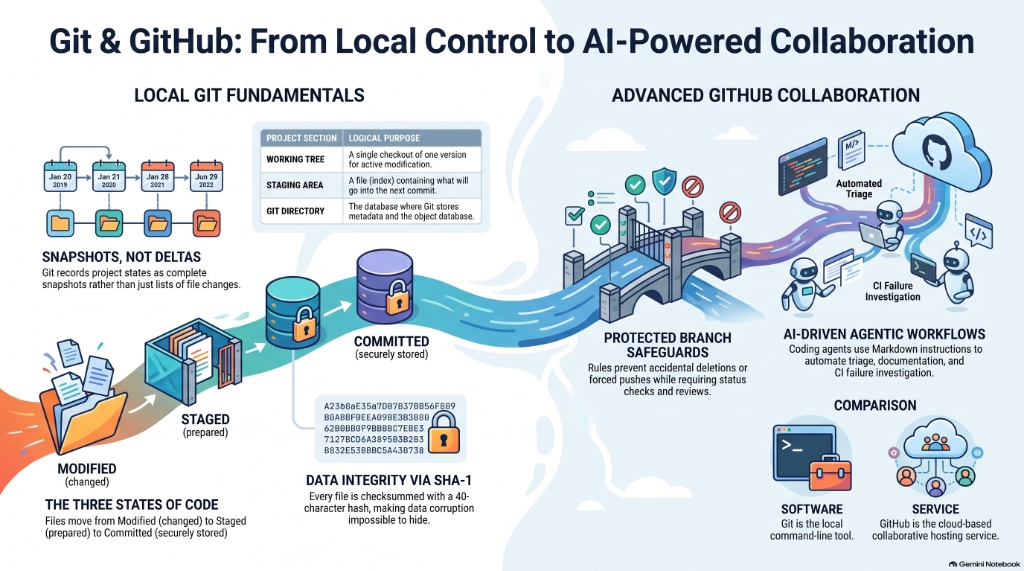
A Comprehensive Engineering Handbook for Distributed Version Control, Platform Governance, and Enterprise Automation
Chapter 1: The Modern Software Delivery Triad
Modern software engineering teams do not rely on single monolithic tools for version control, project coordination, and release engineering. Instead, the modern software delivery lifecycle is governed by an integrated triad of version control, collaborative platform management, and automated continuous runtime orchestration.
At the center of this ecosystem are three key technologies: Git, GitHub, and GitHub Actions. While these systems are frequently conflated, they are structurally distinct tools that operate at different layers of the developer workflow.
1. Version Engine vs. Platform vs. Orchestrator
The modern delivery triad divides responsibilities into three logical layers:
┌─────────────────────────────────────────────────────────────┐
│                      GITHUB ACTIONS                         │
│                     (The Orchestrator)                      │
│   Event-Driven Runtime, Ephemeral Runners, CI/CD Pipelines  │
└──────────────────────────────┬──────────────────────────────┘
                               │ Orchestrates & Automates
┌──────────────────────────────▼──────────────────────────────┐
│                           GITHUB                            │
│                     (The Platform Layer)                    │
│   Pull Requests, Branch Protection, Access Control, Web UI  │
└──────────────────────────────┬──────────────────────────────┘
                               │ Governs & Hosts
┌──────────────────────────────▼──────────────────────────────┐
│                            GIT                              │
│                      (The Local Engine)                     │
│    Local VCS, Snapshots, DAG History, Terminal Interface    │
└─────────────────────────────────────────────────────────────┘
-
Git (The Local Version Engine): Git is a decentralized command-line utility that runs locally on a developer’s workstation. Its primary responsibility is to record and track modifications to source code files, manage branch transitions, and preserve history as a Directed Acyclic Graph (DAG) of project snapshots. Git requires no internet connection, has no concept of a web interface, and does not handle user permissions or team collaboration.
-
GitHub (The Enterprise Collaborative Platform): GitHub is a cloud-based hosting and governance service built on top of Git. It translates local command-line versioning into a shared, centralized web interface. GitHub adds crucial collaboration primitives that Git lacks: access control and user permission management, issues and discussions for project management, pull requests for code review workflows, and branch protection rules to enforce team-wide quality gates.
-
GitHub Actions (The Continuous Automation Orchestrator): GitHub Actions is an event-driven execution runtime natively embedded within the GitHub platform. It listens for events occurring in a GitHub repository—such as a code push, a pull request opening, or an issue label update—and automatically provisions ephemeral environments (runners) to execute multi-step scripts. This transforms a passive hosting repository into an active, self-validating delivery pipeline.
2. Paradigm Comparison: Git vs. GitHub vs. GitLab
Choosing the right platform or combination of platforms is a core architectural decision for engineering leaders. Below is a side-by-side paradigm analysis comparing Git, GitHub, and its primary alternative, GitLab.
| Architectural Dimension | Git | GitHub | GitLab |
|---|---|---|---|
| System Role | Local Version Control Engine | Collaborative Platform & Governance Layer | Single-Application DevSecOps Platform |
| Execution Host | Local Workstation Installation | Cloud SaaS or VM-based Enterprise Server | Cloud SaaS or Open-Source Self-Hosted |
| Licensing Model | Free, Open Source (GPLv2) | Proprietary SaaS / Paid Enterprise Tiers | Open-Core Community Edition / Paid Tiers |
| Automation System | Local Hooks (Client/Server) | GitHub Actions (YAML Workflows) | GitLab CI/CD (YAML Pipelines) |
| Ecosystem Strategy | Minimalist, CLI-First | Modular (10,000+ Marketplace Apps) | All-in-One Native Feature Suite |
| Primary AI Assistant | CLI Autocomplete | GitHub Copilot (Platform-Agnostic) | GitLab Duo (Platform-Bound) |
| Security Auditing | None | Add-On (GitHub Advanced Security) | Native (Built-In SAST/DAST/Container Scan) |
Platform Philosophy Differences
- GitHub's Modular Strategy: GitHub acts as an open, flexible ecosystem. It provides polished core collaboration tools (Pull Requests, Issues) and encourages organizations to construct their customized delivery workflows by integrating specialized third-party services from the GitHub Marketplace.
- GitLab's All-in-One Strategy: GitLab is architected around operational consolidation, providing a single application for the entire DevOps lifecycle. Planning, versioning, security scanning, package registry management, CI/CD execution, and deployment monitoring are natively integrated into a unified database and user interface. This minimizes toolchain fragmentation but can feel overly complex or cluttered compared to GitHub's streamlined web interface.
Chapter 2: Inside Git's Local Engine: State Tracking & Object Storage
To transition from a developer who memorizes commands to an engineer who can resolve complex repository states, one must understand how Git tracks local files and models history under the hood.
1. The Three-Stage Architecture and the Three File Copies
Unlike traditional version control systems (like SVN or CVS) that track file deltas over a simple two-tier model (client working copy vs. central server), Git operates on a three-stage file tracking model on the developer’s workstation.
 ┌──────────────────┐           git add           ┌──────────────────┐
 │                  ├────────────────────────────►│                  │
 │   WORKING TREE   │                             │   STAGING AREA   │
 │ (On-Disk Files)  │◄────────────────────────────┤     (INDEX)      │
 │                  │       git checkout/reset    │                  │
 └────────┬─────────┘                             └────────┬─────────┘
          ▲                                                │
          │                                                │ git commit
          │                                                │
          │             git checkout/reset HEAD            ▼
 ┌────────┴────────────────────────────────────────────────┴─────────┐
 │                                                                   │
 │                       GIT DIRECTORY (.GIT)                        │
 │               (Refs, Metadata, Immutable Object DB)               │
 │                                                                   │
 └───────────────────────────────────────────────────────────────────┘
These three local zones consist of:
- The Working Tree: The physical directory on the local disk where project files are actively edited. These are ordinary, uncompressed files that developers modify using their IDEs. Changes in this zone are completely untracked by Git until they are staged.
- The Staging Area (The Index): A binary file generally located at
.git/index. It acts as an intermediate preparation space or "draft board" where modifications are gathered and verified before they are committed. - The Git Directory (Local Repository): The hidden
.gitfolder containing the project's metadata, branch reference pointers, configuration options, and the compressed object database. When a commit occurs, the exact state of the staging area is serialized and written permanently into this directory.
This design means that up to three distinct versions of a single file can exist concurrently on a developer's computer:
- The HEAD Copy: The immutable, compressed version of the file stored in the current target commit. It represents the historical baseline.
- The Index Copy: The mutable, staged version of the file representing the proposed state of the file for the next commit. It sits in the binary index.
- The Working Tree Copy: The active, raw text or binary file residing on the file system disk, containing unstaged, live edits.
2. Snapshot-Based Storage vs. Delta-Based Tracking
Legacy version control systems track files as a base version plus a list of subsequent line-by-line differences (deltas). Git rejects this model, treating data as a cryptographic stream of snapshots.
Delta-Based VCS:
File A:  [Version 1] ───► [Delta A1] ───────► [Delta A2]
File B:  [Version 1] ───► [No Change] ──────► [Delta B1]

Git Snapshot VCS:
Commit 1: [File A (v1)]   [File B (v1)]   [File C (v1)]
               │               │               │
Commit 2: [File A (v2)]   [Link to v1]    [File C (v2)]   <── Snapshots of entire system
               │               │               │
Commit 3: [Link to v2]    [File B (v2)]   [Link to v2]
Every time a developer runs git commit, Git takes a virtual picture of what all tracked files in the repository look like at that exact millisecond and stores a reference to that snapshot. To maintain high performance and storage efficiency, if a file has not changed between commits, Git does not write the file again; it simply writes a link pointing to the previous identical file it has already stored. This turns Git into a high-performance, mini-versioned filesystem rather than a simple difference tracker.
3. Cryptographic Integrity and the SHA-1 Object Database
Everything in Git's database is checksummed before it is written and is then accessed and referenced by that checksum. This mechanism ensures absolute cryptographic integrity: it is mathematically impossible to change the contents of any file, directory structure, or commit message without Git immediately detecting it.
The mechanism Git uses for checksumming is a SHA-1 hash—a 40-character hexadecimal string calculated from the raw content of the file or directory structure.
An example of a SHA-1 hash is:
24b9da6552252987aa493b52f8696cd6d3b00373
Within the hidden .git/objects/ folder, Git stores all data under three primary object types, indexable by their hashes:
- Blobs: Stored file contents (without names or metadata).
- Trees: Stored directory structures, mapping file names and subdirectories to their corresponding blob and tree hashes.
- Commits: Stored snapshot metadata, containing the author, committer, timestamp, parent commit hashes, and a pointer to the root tree hash.
Chapter 3: Mastering Advanced Local Staging Workflows
The staging area is a powerful mechanism that allows developers to write small, logical commits rather than dumping hours of unstructured changes into a single history-polluting commit.
1. State Transitions and the Command Lifecycle
Files in a Git workspace transition through four primary states: Untracked (not monitored by Git), Modified (edited on disk but not staged), Staged (staged in the index), and Committed (safely written to the .git database).
The lifecycle of staging and undoing local changes is controlled by several key command vectors:
                  ┌────────────────────────────────────────┐
                  │               UNTRACKED                │
                  └───────────┬────────────────▲───────────┘
               git add <file> │                │ git rm --cached
                              ▼                │
┌──────────────┐  git add     ┌────────────┐   │   git commit   ┌───────────────┐
│   MODIFIED   ├─────────────►│   STAGED   ├───┼───────────────►│   COMMITTED   │
└──────────────┘              └─────┬──────┘   │                └───────┬───────┘
       ▲                            │          │                        │
       │ git checkout/restore <file>│          │                        │ git revert
       │                            ▼          │                        │
       └────────────────────────────┴──────────┴────────────────────────▼
                             git reset HEAD <file>
git add <file>: Copies the file from the Working Tree to the Staging Area, immediately compressing the contents and writing a new blob to the.gitdatabase, updating the index tracker.git commit: Takes the serialized state of the index and writes it permanently to the project timeline as a new commit object.git reset HEAD <file>: Replaces the file copy in the Staging Area with the version currently stored inHEAD. This unstages the file, leaving the physical file on disk unchanged (the file state transitions from Staged back to Modified).git rm --cached <file>: Removes the file path from Staging Area tracking. The physical file remains completely untouched on disk, transitioning its state to Untracked.git checkout <file>orgit restore <file>: Overwrites the local modified file in the Working Tree with the version currently staged in the index or stored in a commit, wiping out all uncommitted local modifications.
2. Granular Commit Crafting: Interactive and Hunk Staging
When a developer has spent hours editing multiple functions within a file but wants to split those edits into separate, highly readable commits, they can utilize hunk-level staging.
The Interactive Staging Interface (git add -i)
Running git add -i launches a text-based menu displaying all staged and unstaged changes:
$ git add -i
           staged     unstaged path
  1:    unchanged        +12/-4 src/auth.py
  2:    unchanged         +8/-0 src/models.py

*** Commands ***
  1: status      2: update      3: revert     4: add untracked
  5: patch       6: diff        7: quit       8: help
What now>
Developers can selectively stage modified paths (update), stage new untracked files (add untracked), revert staged files back to HEAD (revert), or review staged diffs (diff).
Hunk-Level Patching (git add -p)
By running git add -p (or typing 5 in the interactive menu), Git automatically parses changed files and divides them into individual code blocks (hunks). For each hunk, Git displays the diff and halts to ask the developer for instructions:
Stage this hunk [y, n, q, a, d, j, J, g, /, e, ?]?
The critical control keys for hunk staging are defined below:
| Option | Action | Use Case |
|---|---|---|
y |
Stage this hunk | The changes in this specific block are ready to be included in the next commit. |
n |
Do not stage this hunk | Keep this change on the local disk but skip staging it for this commit. |
q |
Quit staging | Immediately exit the interactive patching session, preserving all staging selections made up to this point. |
a |
Stage this hunk and all subsequent hunks | Stage the current block and automatically stage all other changes remaining in this specific file. |
d |
Do not stage this hunk or subsequent hunks | Skip this block and skip all remaining changes in this specific file. |
e |
Manually edit the hunk | Launches the system text editor to manually split or edit lines within the diff chunk for custom staging. |
? |
Print hunk help | Displays detailed documentation explaining all available command options. |
3. Handling Special Staging Cases
Deleting Files
If a developer deletes a file manually via the OS terminal (rm src/utils.py), the file will appear as deleted but unstaged when running git status. To stage this deletion, the developer must run git add src/utils.py. Alternatively, running git rm src/utils.py will delete the file from the Working Tree and stage that deletion in the index in a single operation. For removing entire directories, git rm -r <dir> handles disk deletion and staging recursively.
Merge Conflict Resolution
During a branch merge, files that integrate cleanly are automatically written to both the Staging Area and the Working Tree. However, if conflict markers are injected, Git marks those conflicting files as unstaged and halts. Cleanly merged portions of the conflict are stored in the index, while the overlapping conflicts are left exposed in git diff. The developer must edit the conflicted files on disk to resolve the blocks, then run git add to stage the completed resolution, informing Git that the conflict has been handled.
Chapter 4: Collaborative Governance: Pull Requests & Reference Mechanics
When local development is pushed to a remote host, collaboration is coordinated through a structured governance layer known as a Pull Request (PR).
1. The Anatomy of a Pull Request
A Pull Request brings together code changes, automated tests, and peer commentary into a single, cohesive context. The GitHub interface organizes this information across five tabs:
┌─────────────────────────────────────────────────────────────┐
│                      PULL REQUEST TABS                      │
├─────────────┬───────────┬───────────┬─────────────┬─────────┤
│ CONVERSATION│  COMMITS  │  CHECKS   │FILES CHANGED│ FINDINGS│
└─────────────┴───────────┴───────────┴─────────────┴─────────┘
- Conversation Tab: Shows the pull request title, description, chronological review timeline, peer comments, and a high-level summary of automated check runs.
- Commits Tab: Lists the historical sequence of individual commits pushed to the topic branch, allowing reviewers to see how the work evolved.
- Checks Tab: Displays the real-time execution states, logs, and output results of automated tests, security scans, and deployment validations.
- Files Changed Tab: Renders an interactive side-by-side or unified diff. Reviewers can leave inline comments on specific lines, suggest direct code modifications, and submit approvals or change requests.
- Findings Tab: Aggregates automated security reviews, directly displaying static analysis scanning alerts (SAST) or vulnerable package notifications introduced by the PR's code changes.
2. GitHub's Behind-the-Scenes Merge References
To evaluate and display a pull request without modifying the target production branch, GitHub automatically generates temporary, read-only Git references in the remote repository's background:
refs/pull/[PR_Num]/head: Points directly to the latest tip commit of the topic branch.refs/pull/[PR_Num]/merge: Points to a simulated merge commit calculated on GitHub's servers, representing the outcome of merging the topic branch into the base branch.
These references are extremely powerful. Continuous Integration (CI) systems like GitHub Actions use refs/pull/[PR_Num]/merge as their build target. Instead of simply testing the isolated topic branch, the CI system compiles and tests the merged result of the proposed changes against the current state of the main branch. This catches integration errors before any code is actually merged.
3. Diff Calculation and the Merge Base
A common source of confusion is why the file changes displayed on a Pull Request page sometimes differ from the differences shown on a local branch comparison page.
Base Branch:  ... A ───► B ───► C ───► D (Latest Commit)
                          │
                          └─► E ───► F (Topic Branch Latest Commit)
                                     ▲
                                 Merge Base
                           (Last Common Ancestor)
The difference lies in how the comparison point is determined:
- The Compare Page: Compares the active tips of the two branches directly (Commit
Dvs. CommitF). - The Pull Request Diff: Calculates changes relative to the Merge Base—the last common ancestor commit between the topic branch and the target base branch (Commit
B).
If new commits are pushed directly to the base branch (C and D) after a pull request is opened, the merge base remains at B. To update the diff calculation and ensure that conflicts or breaking changes are evaluated, the topic branch's author must merge the base branch or rebase their changes, updating the merge base commit.
4. Code Review Assignment & Governance
Reviewers are assigned based on repository write permissions and custom rules. To identify the best engineer to review a specific change, GitHub utilizes git blame telemetry to suggest reviewers who have historically edited the lines modified in the PR.
In professional teams, mandatory reviews are codified via a CODEOWNERS file located in the root, .github/, or docs/ directory of the repository. This file maps file extensions and path patterns to specific engineers or teams:
# .github/CODEOWNERS
*                    @core-architecture-team
*.py                 @backend-reviewers
/docs/               @technical-writers
When a PR contains changes to a Python file, GitHub automatically requests and enforces approvals from the @backend-reviewers team before the PR is unlocked for merging.
Chapter 5: Architectural Comparison: GitHub vs. GitLab
Choosing between GitHub and GitLab in 2026 involves navigating a complex landscape of feature sets, infrastructure hosting requirements, pricing plans, and AI integrations.
1. SaaS vs. Self-Hosting Models
The first major differentiator is how and where the platforms can be deployed:
- GitHub Hosting: GitHub is primarily a SaaS-first platform. Startups and enterprise teams enjoy high availability and fast onboarding. For organizations requiring local data control, GitHub offers GitHub Enterprise Server (GHES)—a licensed virtual machine deployed on-premises or inside a private cloud. However, GitHub does not offer any free self-hosted tier; self-hosting is restricted to paid, enterprise-tier contracts.
- GitLab Hosting: GitLab provides hosting flexibility. Through GitLab Community Edition (CE), which is free and open-source, any team can download, deploy, and maintain a fully-featured version-controlled platform on their own hardware without paying platform licensing fees. GitLab also offers paid tiers (Premium and Ultimate) for SaaS and self-hosted environments.
2. Security and Auditing Comparison
As software supply chain attacks become more common, built-in security auditing has become a critical evaluation point.
GitHub Security (Add-on Model):
[Developer Workflow] ──► [Dependabot (Free Scan)] ──► [GHAS Add-On ($$$) Required for CodeQL SAST]

GitLab Security (Integrated Model):
[Developer Workflow] ──► [Built-in Pipeline] ──► [SAST, DAST, Container Scanning (Native & Free/Ultimate)]
- GitHub Advanced Security (GHAS): GitHub’s security suite is a premium add-on to its base licensing. It is powered by CodeQL, an industry-leading semantic analysis engine that queries code as data to identify deep logical vulnerabilities. GHAS includes Code Scanning (SAST), Secret Scanning (which blocks pushes containing hardcoded credentials), and Dependency Review.
- GitLab DevSecOps Integration: GitLab includes security scanning natively within its pipeline execution from the ground up. GitLab Ultimate provides an out-of-the-box security dashboard featuring Static Application Security Testing (SAST), Dynamic Application Security Testing (DAST) for running web containers, Container Image Scanning, API Fuzzing, and License Compliance scanning.
3. Pricing and Total Cost of Ownership
To evaluate the financial impact of each platform, organizations must compare seat licensing against bundled features. Below is an outline of the standard pricing structures in 2026:
| Plan Tier | GitHub Pricing & Features | GitLab Pricing & Features |
|---|---|---|
| Free Tier | $0/user/month • Unlimited public/private repos • Limited Actions minutes • Basic pull requests |
$0/user/month (SaaS or Self-Hosted CE) • Unlimited private repos • Free self-hosted runners • Basic planning tools |
| Mid-Tier | Pro: $4 / Team: ~$4/user/month • Advanced branch protections • Increased Actions runner minutes • Standard support |
Premium: $29/user/month • Advanced CI/CD control • 10,000 CI/CD SaaS minutes • Enterprise-grade project planning |
| Enterprise | Enterprise: ~$21/user/month • Self-hosted server option • SAML single sign-on • Advanced compliance rulesets |
Ultimate: $99/user/month • Native DevSecOps suite (SAST/DAST) • Vulnerability dashboard • Compliance management |
Total Cost of Ownership (TCO) Analysis
At first glance, GitHub's $4/month Team tier appears significantly cheaper than GitLab's $29/month Premium tier. However, the calculation shifts based on your operational dependencies:
- Startups needing strict compliance or self-hosting: If you must keep your code on-premises, GitLab CE is free to operate. GitHub would require Enterprise contracts.
- DevOps-Heavy Teams: GitLab Premium includes a built-in container registry, Auto DevOps, and bundled security scanners. On GitHub, recreating this workflow requires licensing the Team plan, paying for third-party marketplace security apps, and paying for Actions compute overages.
4. AI Copilots: GitHub Copilot vs. GitLab Duo
By 2026, both platforms have integrated AI capabilities that extend beyond simple code autocompletion.
GitHub Copilot
- Ecosystem Strategy: Copilot is a platform-agnostic, developer-centric AI assistant. It integrates directly with major IDEs (VS Code, JetBrains, Visual Studio) and works regardless of where your repositories are hosted.
- Core Philosophy: Optimised for developer productivity, offering code generation, inline chat, and custom agents that direct work from issue to merge.
GitLab Duo
- Ecosystem Strategy: Duo is a platform-bound, DevOps-centric AI assistant deeply integrated into the GitLab ecosystem.
- Core Philosophy: Duo is highly context-aware. It understands why code exists by reading linked planning issues, merge requests, pipeline histories, and epic boards.
- Specialized Agent Platform: Features specialized AI agents that collaborate on complex tasks (e.g., Software Developer, Security Analyst, Product Planning, and Deep Research agents).
Chapter 6: Automating the SDLC with GitHub Actions
GitHub Actions is the engine that drives continuous integration and delivery. It is configured using YAML files stored inside the .github/workflows/ directory of a repository.
1. The Five Core Runtime Components
A GitHub Actions execution is composed of five logical blocks:
┌─────────────────────────────────────────────────────────────┐
│                          WORKFLOW                           │
│              (Triggered by a Repository Event)              │
├─────────────────────────────────────────────────────────────┤
│  ┌───────────────────────┐       ┌───────────────────────┐  │
│  │         JOB 1         │       │         JOB 2         │  │
│  │  (Runs on Runner A)   │       │  (Runs on Runner B)   │  │
│  ├───────────────────────┤       ├───────────────────────┤  │
│  │ • Step 1: Run Script  │──────►│ • Step 1: Run Script  │  │
│  │ • Step 2: Use Action  │ Needs │ • Step 2: Use Action  │  │
│  └───────────────────────┘       └───────────────────────┘  │
└─────────────────────────────────────────────────────────────┘
- Workflows: The top-level automated process configured in a single YAML file. A repository can have multiple workflows (e.g., one for running unit tests, one for publishing releases, and one for issue triaging).
- Events: Specific platform activities that trigger a workflow run. These can be code events (
push,pull_request), schedule events (schedule: - cron: '0 0 * * *'), or manual triggers (workflow_dispatch). - Jobs: A group of sequential steps executed on the same target host machine (runner). By default, multiple jobs within a workflow run in parallel unless dependency chains are defined using the
needsparameter. - Steps: Individual, sequential tasks within a job. A step can either run a raw shell command or invoke an Action. Since steps run on the same runner, they share the local file system and environment state.
- Actions: Reusable, packaged units of code designed to simplify common pipeline tasks (e.g., checking out code, setting up a Python environment, or uploading build artifacts).
2. Runner Topologies
Workflows run on host virtual machines or containers called runners. Organizations can choose from three distinct runner architectures:
GitHub-Hosted Runners
Fully managed, clean, ephemeral virtual machines provisioned by GitHub on demand. GitHub supports standard operating systems (Ubuntu Linux, Windows Server, macOS) and multiple architectures (x64 and native ARM64). Standard specifications for Ubuntu include:
- Linux (ubuntu-latest): 2 vCPUs, 8 GB RAM, 14 GB SSD storage (x64 architecture).
- Linux ARM (ubuntu-24.04-arm): 2 vCPUs, 8 GB RAM, 14 GB SSD storage (arm64 architecture).
Self-Hosted Runners
Custom physical servers or virtual machines managed and maintained directly by the organization. They allow for persistent build-dependency caching, private network access, and custom hardware configurations (such as GPUs).
Actions Runner Controller (ARC)
A scalable Kubernetes operator that automates the provisioning of self-hosted runners. ARC monitors the GitHub Actions execution queue and automatically provisions ephemeral, containerized runners as Kubernetes pods.
3. Syntax Reference: Creating a Production-Ready Workflow
Below is a complete, production-grade GitHub Actions workflow demonstrating event triggers, path filtering, environments, secrets, and steps:
# .github/workflows/production-pipeline.yml
name: Production Deployment Pipeline

# Trigger conditions and branch/path filters
on:
  push:
    branches:
      - main
      - 'releases/**'
    paths-ignore:
      - 'docs/**'
      - '*.md'
  pull_request:
    branches:
      - main
  workflow_dispatch:

# Centralized permission control
permissions:
  contents: read
  id-token: write

jobs:
  test-and-lint:
    name: Test on $ / Python $NaN
    runs-on: $
    strategy:
      fail-fast: true
      matrix:
        os: [ubuntu-latest, windows-latest]
        python-version: ['3.10', '3.11', '3.12']
        exclude:
          # Exclude Windows builds for legacy Python versions due to local dependencies
          - os: windows-latest
            python-version: '3.10'

    steps:
      - name: Checkout Source Code
        uses: actions/checkout@v4

      - name: Initialize Python Environment
        uses: actions/setup-python@v5
        with:
          python-version: $NaN
          cache: 'pip'

      - name: Install Project Dependencies
        run: |
          python -m pip install --upgrade pip
          pip install -r requirements.txt

      - name: Run Test Suite
        run: pytest tests/ --junitxml=reports/junit.xml

      - name: Archive Test Results
        uses: actions/upload-artifact@v4
        if: always()
        with:
          name: test-results-$-$NaN
          path: reports/

  deploy-to-staging:
    name: Deploy to Staging Environment
    needs: test-and-lint
    if: github.event_name == 'push' && github.ref == 'refs/heads/main'
    runs-on: ubuntu-latest
    environment:
      name: staging
      url: https://staging.example.com

    steps:
      - name: Checkout Code
        uses: actions/checkout@v4

      - name: Deploy to Cloud Provider
        env:
          API_TOKEN: $
        run: |
          echo "Deploying to staging..."
          # deployment script execution here
Chapter 7: High-Velocity Pipeline Strategies: Matrix Builds & Required Checks
To run fast and secure pipelines, organizations must optimize their build combinations and establish rigid pull request gates.
1. Matrix Strategies and Dynamic Combination Math
Matrix strategies run jobs concurrently across multiple configurations to catch compatibility issues quickly. The total number of parallel jobs generated by a matrix is determined by the product of the lengths of all variable arrays, minus any excluded combinations:
$$J = \prod_{i=1}^{n} |V_i| - |E|$$
Where $|V_i|$ is the size of each configuration array, and $|E|$ is the count of matched exclusion rules. For example, a matrix with 3 operating systems, 3 runtimes, 2 environments, and 3 exclusions results in: $$\text{Total Jobs} = (3 \times 3 \times 2) - 3 = 18 - 3 = 15 \text{ jobs}$$
Dynamic Matrix Generation
Workflows can generate matrices dynamically based on the output of preceding jobs. A preparatory job can inspect changed files and write a JSON array to $GITHUB_OUTPUT which is then read by the matrix.
2. Required Status Checks: Loose vs. Strict Policy Enforcement
Administrators utilize required status checks within branch protection rules to block code merges until pipelines pass successfully. These required checks can be configured to operate under two distinct enforcement modes:
Loose Status Checks:
Base Branch:   ... A ───────► B ───► C (New Commit)
                        │
PR Topic:               └─► D ───► E (Passed CI) ───► Merge Allowed without updating base

Strict Status Checks (Required branches to be up to date):
Base Branch:   ... A ───────► B ───► C (New Commit)
                        │              ▲
PR Topic:               └─► D ───► E ──┴── Requires merge/rebase of C before Merge is allowed
- Loose Status Checks (Default): The required status check must pass, but the proposed branch is not required to be up-to-date with the target base branch before merging.
- Strict Status Checks: The topic branch must be fully up-to-date with the latest commit on the target base branch before merging. If a peer merges a pull request, all other open pull requests must merge the updated base branch and re-run all status checks before they can merge.
3. Pipeline Optimizations and Actionable Best Practices
- Enforce Unique Job Names: Required status checks evaluate jobs by name. If multiple workflows contain jobs with identical names, GitHub can receive conflicting check states.
- Use
fail-fast: true: Enabled by default in matrix strategies, this immediately cancels all other in-progress or queued jobs in the matrix if any single job fails. - Handling Skipped Required Jobs: If path filtering or conditional logic skips a required status check, GitHub Actions automatically reports its status as "Success" rather than leaving it "Pending".
Chapter 8: Next-Generation Automation: AI-Driven Agentic Workflows
As software automation evolves, teams are experimenting with AI-driven agentic workflows as a flexible alternative to traditional, deterministic CI/CD pipelines.
1. Natural Language Markdown Instructions
Introduced in technical preview in February 2026, GitHub Agentic Workflows bring autonomous coding agents directly into the GitHub Actions runtime.
Unlike traditional pipelines that require hardcoded YAML execution blocks, agentic workflows execute tasks based on outcomes described in plain Markdown files (e.g., daily-repo-status.md):
---
on:
  schedule:
    - cron: '0 8 * * *'
permissions:
  issues: write
  contents: read
tool-limits:
  max-requests: 10
---

# Instructions for the Coding Agent
You are an autonomous repository manager. Every morning, execute these tasks:
1. Scan the open issues in the repository.
2. Identify any unresolved bugs that have been active for more than 14 days.
3. Generate a summarized Markdown report.
4. Post this report as a new issue in the repository, tagged with 'daily-report' and assigned to @repo-maintainer.
The workflow file is compiled locally using the GitHub CLI:
gh extension install github/gh-aw
gh aw compile
This compiles the natural-language Markdown instructions into a secure lockfile (daily-repo-status.lock.yml) that can be executed as a standard GitHub Actions runner job.
2. Continuous AI Security Guardrails
While giving an AI agent the ability to inspect and edit code promises productivity gains, it introduces security risks—particularly software supply chain injection attacks. To prevent malicious behavior, GitHub Agentic Workflows enforce a defense-in-depth security architecture:
[Agent Execution Triggered]
           │
           ▼
┌──────────────────────────────────────┐
│  SANDBOXED RUNTIME CONTAINER         │  ◄── Complete environmental isolation
├──────────────────────────────────────┤
│  • Read-Only API Token (Default)     │  ◄── Cannot push directly to main
│  • Max Request Limits (Tool-Limits)  │  ◄── Prevents runaway billing loops
└──────────────────┬───────────────────┘
                   │ Outputs Recommendations
                   ▼
┌──────────────────────────────────────┐
│  SAFE OUTPUTS GENERATION             │
├──────────────────────────────────────┤
│  • Create PR (Never auto-merged)     │  ◄── Humans must review and approve
│  • Write Comments / Open Issues      │
└──────────────────────────────────────┘
- Sandboxed Run-Environments: Execution is completely confined within ephemeral, sandboxed containers. The agent has no access to the underlying runner host.
- Read-Only Token Defaults: By default, the runner’s
GITHUB_TOKENis set to read-only. The AI agent cannot directly push commits to branches or bypass branch protections. - Safe Output Generation: Rather than directly modifying the code repository, agents use "safe outputs" (like opening a Pull Request).
- Mandatory Human-in-the-Loop: Pull requests created by AI agents can never be merged automatically. A human developer must review the proposed changes, inspect the execution logs, and manually approve and merge the code.